Amazon gift cards are among the most popular digital gifts out there, but you might find yourself with a balance in your account that you'd rather invest as flexible cash liquidity instead of tying it down to specific retail purchases.
If you are looking for a smart and secure way to make the most of these cards, the Swapforless platform provides the ultimate solution to sell Amazon cards and seamlessly convert their value to safely land inside your Kazawallet.
In this article, we take you on a practical, straightforward walkthrough to show you how to Sell an Amazon Card and Withdraw it to Kazawallet.
Quick Summary (TL;DR)
Do you have an Amazon gift card balance and want to turn it into cash and withdraw it to your Kazawallet right now? It is remarkably simple: log in to the Swapforless platform, head directly to the "Gift Cards" section, and select Amazon.
Specify the card's category, accurately copy the code, and submit your request.
Once the code is reviewed and verified, the net profits will be instantly added to your platform wallet, ready for you to effortlessly withdraw them to your Kazawallet account (either in USD or USDT).
Steps to Sell an Amazon Card and Withdraw it to Kazawallet
The process of selling an Amazon card and withdrawing it to Kazawallet is carried out in two stages:
First: Selling Amazon Cards on Swapforless
The process is designed to be fast and hassle-free. All you have to do is follow these steps:
We have designed the platform's interface to be clear and straightforward, so you can sell your cards without any complications. Follow these simple steps:
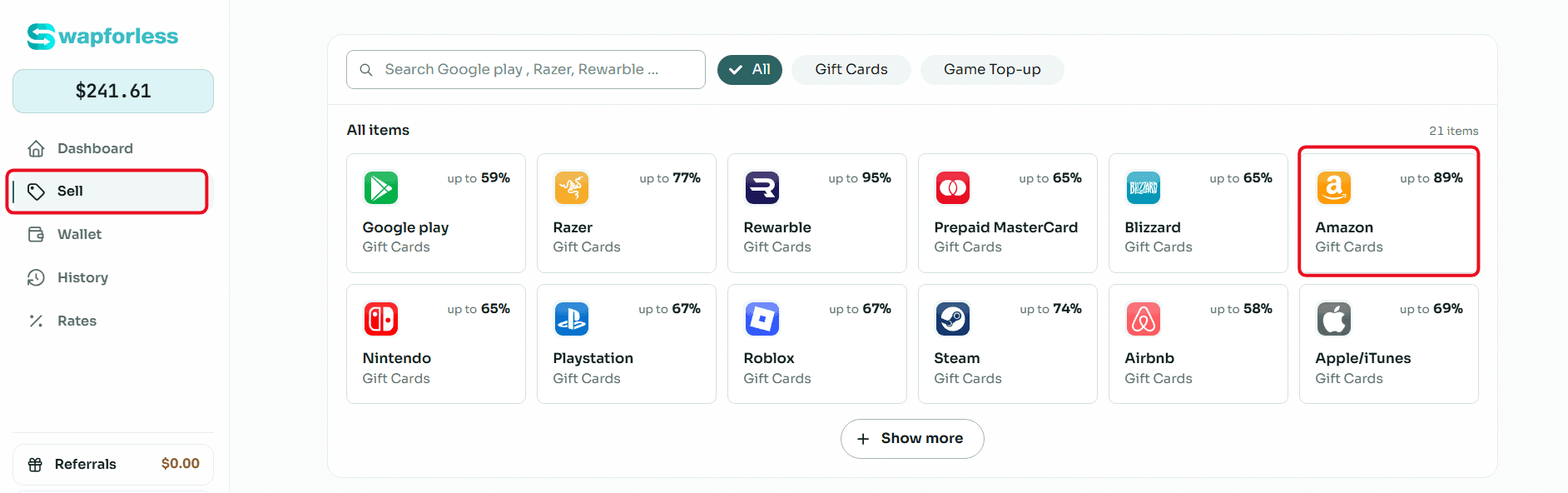
Direct Start: From your main "Dashboard", go to the "Sell" section and directly click on the "Amazon" icon to start the process.
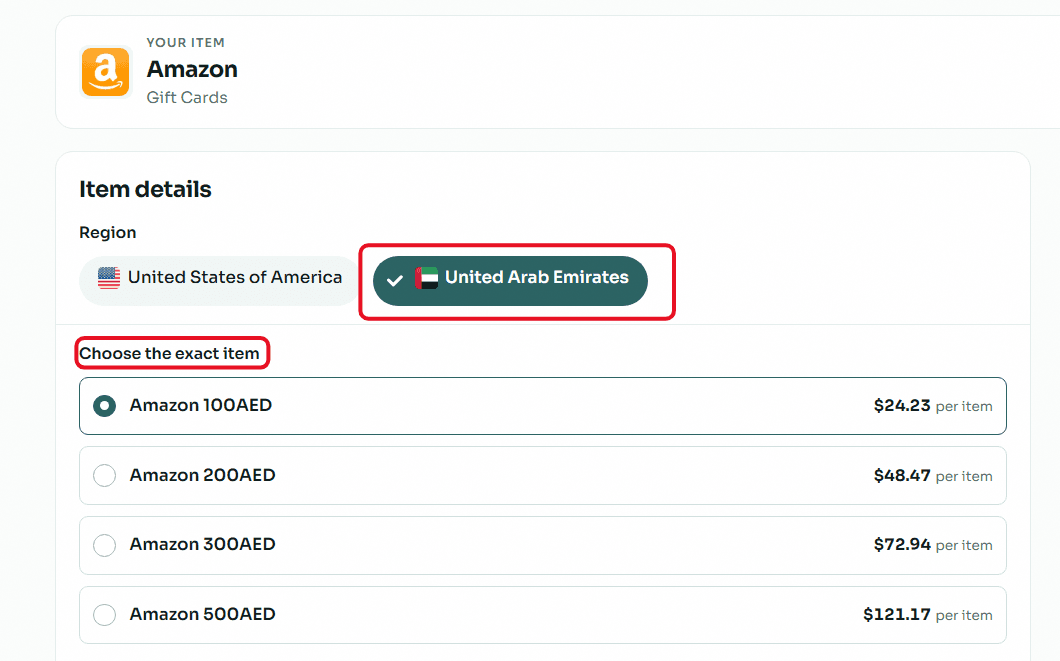
Set Exact Card Details: In the item details section, it is crucial to select the correct "Region" (in this case: UAE). Next, open the drop-down menu to select the exact category that matches your card's value (for example: 100 AED, 200 AED, or 500 AED) to see its assigned selling rate.
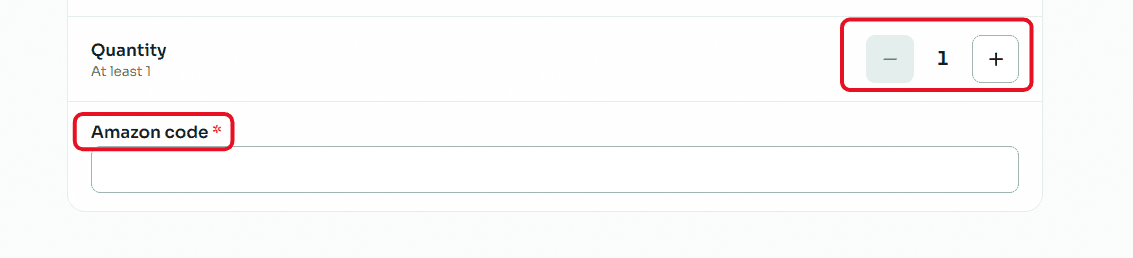
Enter Code and Quantity: If you have more than one card of the same category, use the (+) and (-) buttons to set the "Quantity". In the designated field, carefully type or paste the Amazon secret code (which usually consists of letters and numbers) to avoid rejection due to typos.
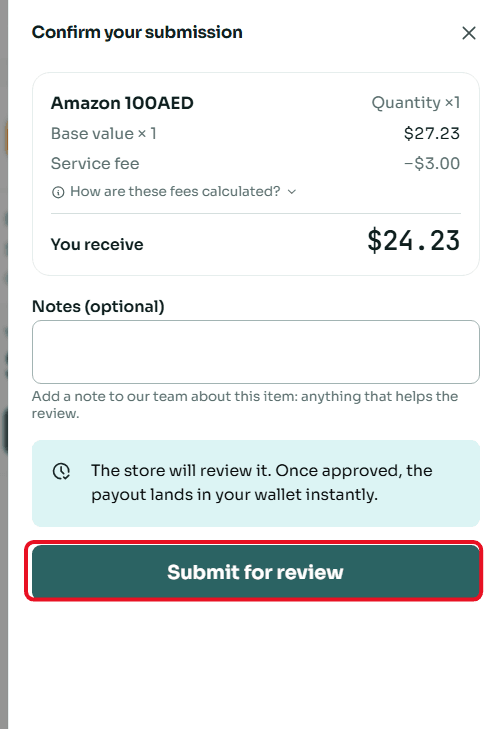
Review Deal and Confirm Submission: A "Confirm Submission" window will appear showing an accurate summary of the sale (card value and the net amount you will receive). You can add a note for the review team if needed, then click "Submit for Review".
Second: Withdraw the Balance from Swapforless to Kazawallet
The steps to withdraw balance from Swapforless to Kazawallet are very simple and take only a few seconds. Follow these steps:
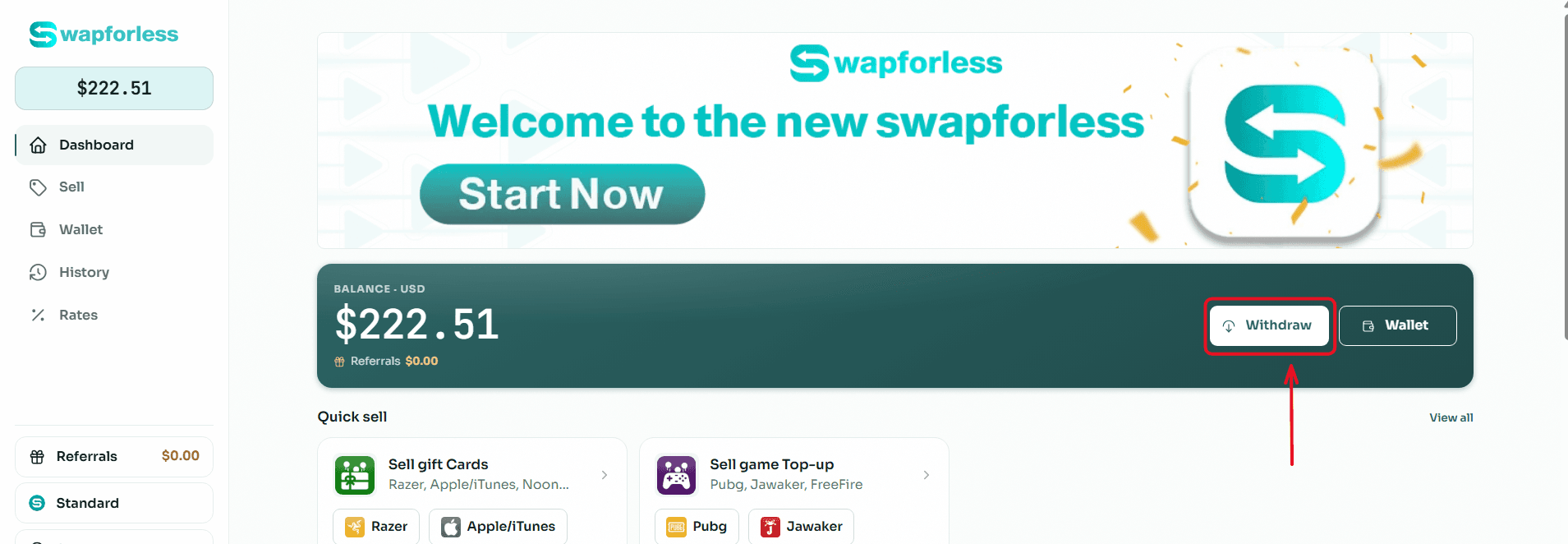
Start the Withdrawal Process: From your main Dashboard, click the "Withdraw" button located next to your available balance.
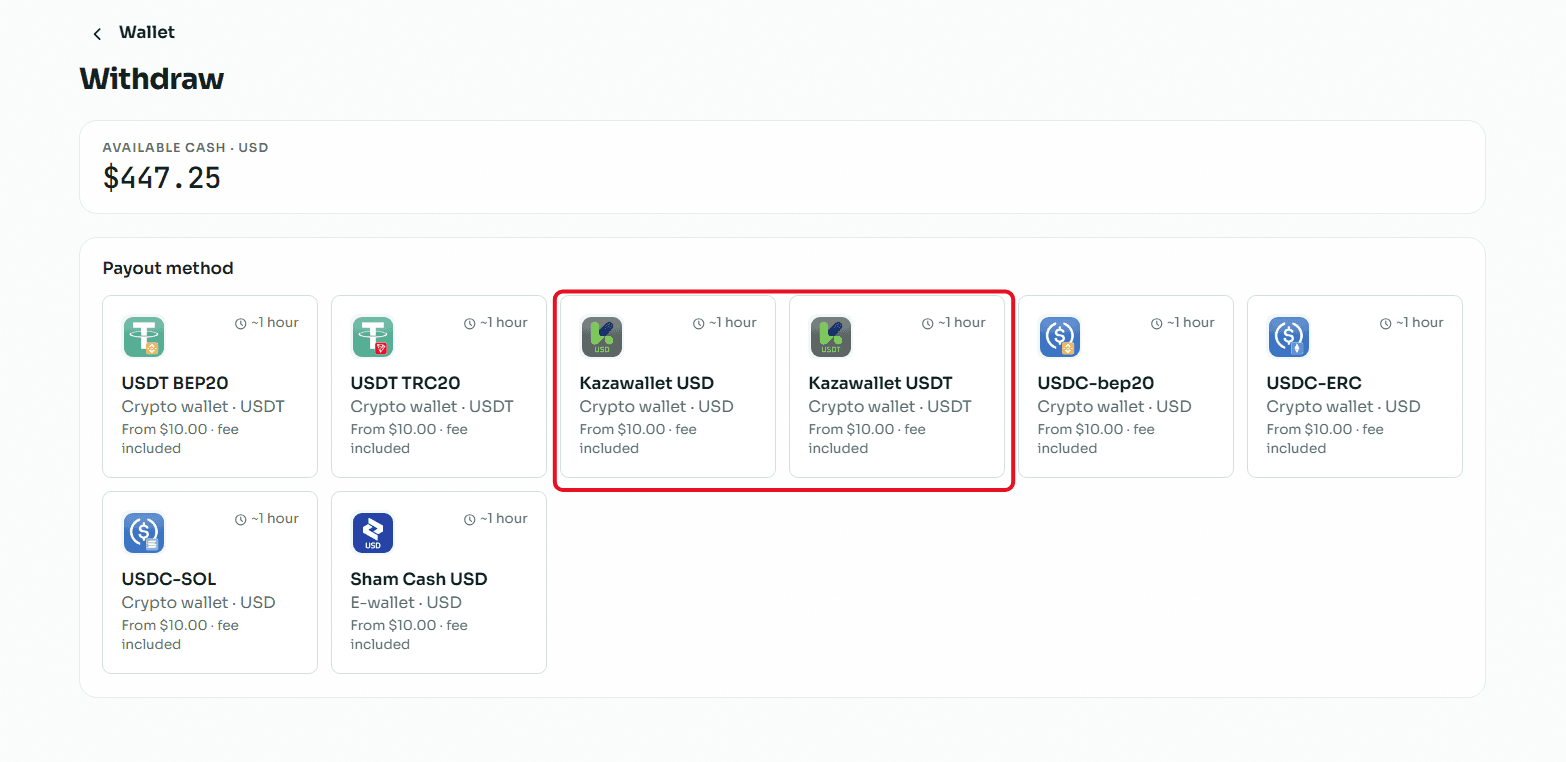
Select the Withdrawal Method: You will be directed to the withdrawal page showing multiple options. Choose "Kazawallet USD or USDT" from the available withdrawal methods.
Enter the Required Amount: In the "Amount" field, type the value you wish to withdraw from your balance, keeping in mind that the minimum withdrawal limit is $10.00 and the maximum limit per transaction is $1,000.00.
Enter Account Details: In the "Your Account Number" field, carefully type or paste your Kazawallet account number to ensure the funds reach the correct destination.
Review and Confirm: Review the transaction summary showing the requested amount, the fixed withdrawal fees, and the net amount you will receive, then click the "Review Withdrawal" button to submit your request.
Read more about how to withdraw balance from Swapforless to Kazawallet
Conclusion
Having frozen balances trapped in shopping cards is no longer an obstacle to your financial plans.
By selling Amazon cards via the Swapforless platform and managing them with complete flexibility inside Kazawallet, you ensure that your virtual balances are transformed into secure financial liquidity, granting you absolute freedom to handle your money whenever and however you wish.